
Appearance
Getting started
Here, I will walk you through all the basics of CubeQuiz. This will include creating, adding, editing and playing a quiz.
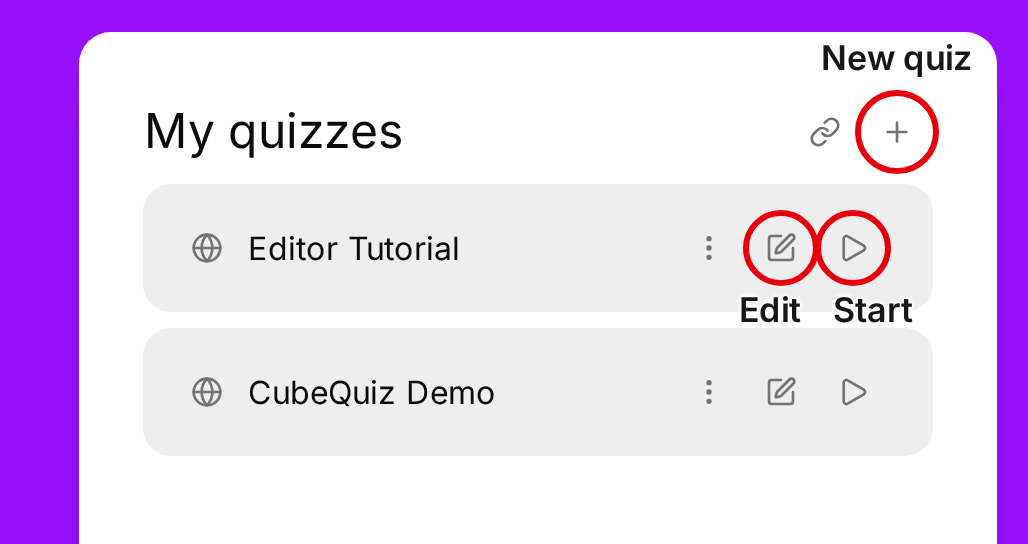
Creating or adding a quiz
Before you start quizzing, of course you first need a quiz. When you open the website for the first time, I already added a demo quiz for you called 'CubeQuiz Demo' that highlights all elements of the tool. Feel free to edit or delete it.
To create your own new quiz, press the + button (New quiz) on the homepage.
To find some inspiration, go to Curated quizzes and add one of the quizzes I made. It is copied to your own quizzes, so you can change it as you like.
Editing a quiz
To create a quiz for your needs you will want to edit it. You can edit the quizzes you added from the curated list as well as the ones you made yourself. To edit, press the Edit button on the quiz.
In the editor, you can add, edit, move and delete slides and questions. Don't forget to save! See the editor page.
💡 Your quizzes are stored in your browser. To keep a quiz safe, or to share it, move it to a file. See storing quizzes.
Playing the quiz
Now, we have finally arrived at the most important part: playing the quiz. To start playing the quiz, press the Start button (▷).
💡 If you do not have any cubes, you can use your phone to load the marker codes here. It will not work amazingly but you will see that it works and how it works.
The quiz consists of either slides or questions. Slides are there to help you build up your presentation/quiz but have no functionality.
Questions on the other hand are interactive. All questions use the buttons at the bottom right. These buttons are your main way to go through the steps of a question. For example, in the multichoice question: considering the question, considering possible answers, answering, checking the answers and seeing results.
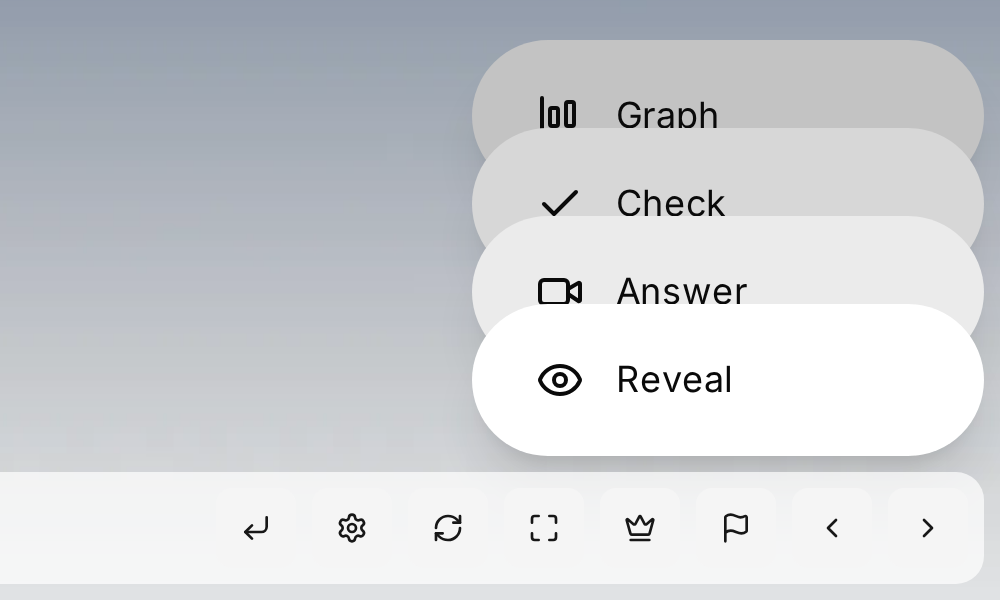
The quiz you are playing stays at the top of your list on the homepage, so you can always continue where you left off. For more information, go to the player page.
That's it
For more information, see specific pages.