Appearance
Multichoice
The Multichoice format is your classic "pick the right answer" style. Players choose an answer by showing the correct side of their physical cube to the camera.
Game Flow
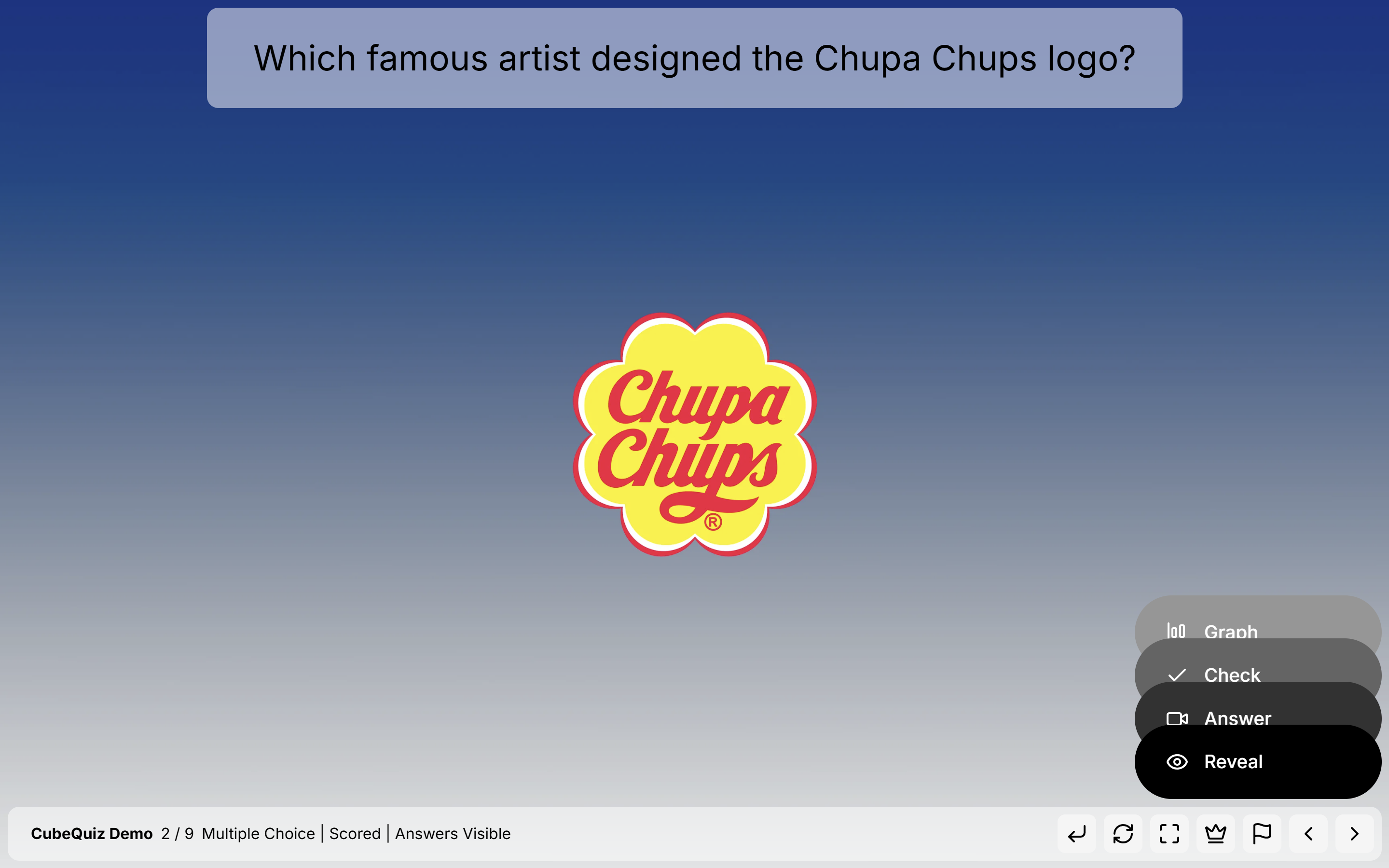
🧠 Thinking Step
In this step, only the question is visible. The answer options are hidden, allowing players to consider the question freely and form their own thoughts without bias.
🎯 Choosing Step
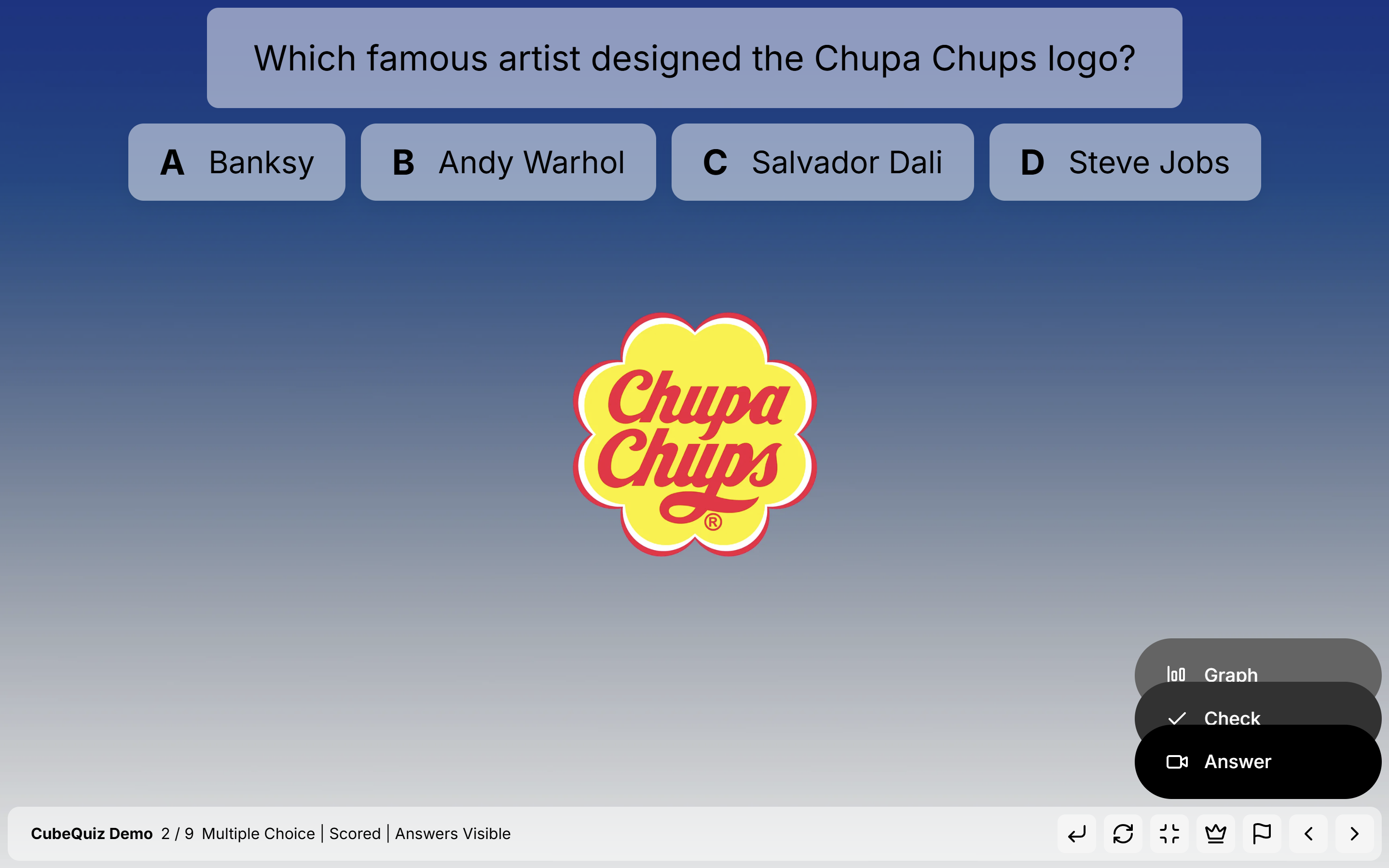
The answer options are now revealed, giving players the opportunity to review all possible answers and choose their preferred one. However, the camera remains disabled at this point, so no answers are registered yet.
📷 Answering Step
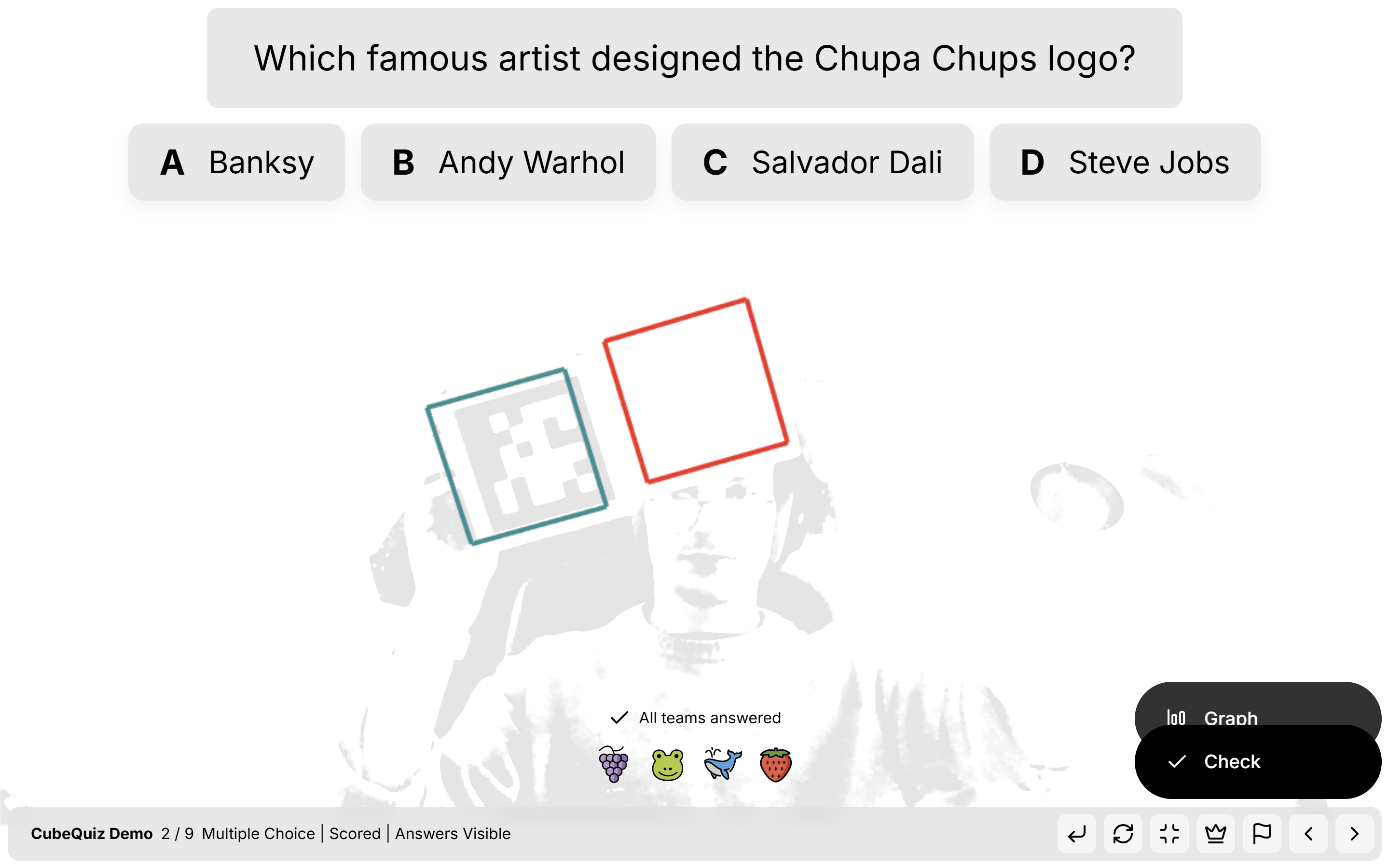
The camera is enabled, allowing players to show their selected cube side as their answer. Once all participants have displayed their choices, a message appears indicating that all players have answered. The host can then press the Check button, which starts a 3-second countdown. After this countdown, the system locks in and verifies the answers.
✅ Results Step
Once the answers are recorded, the system displays each team's selected answer, depending on the settings. If the question is marked as scored, points are awarded to those who answered correctly.
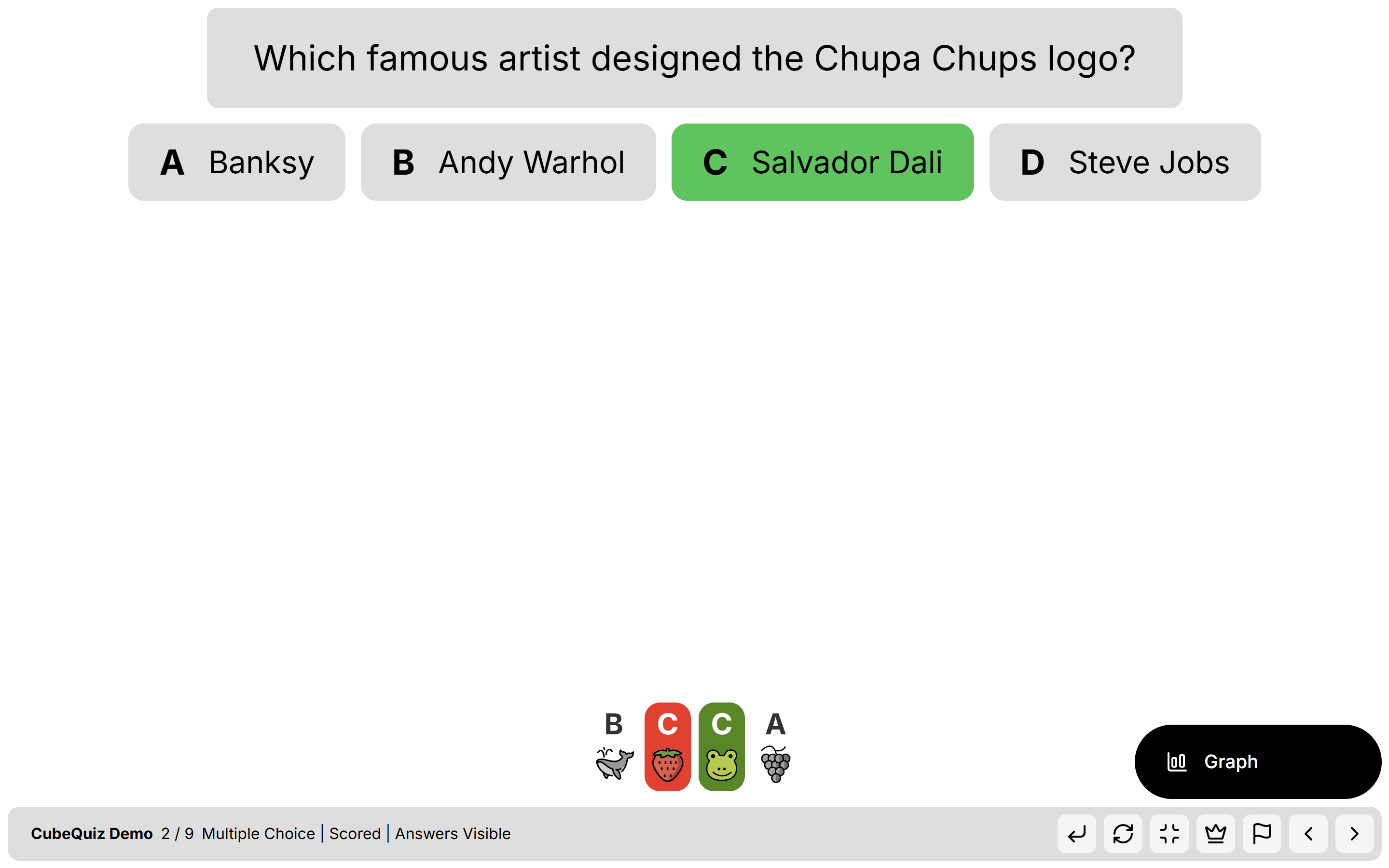
📊 Reflecting Step
A response graph is shown, summarizing the number of selections for each answer option. This visual insight helps facilitate group reflection and discussion.

Editor & Customization Options
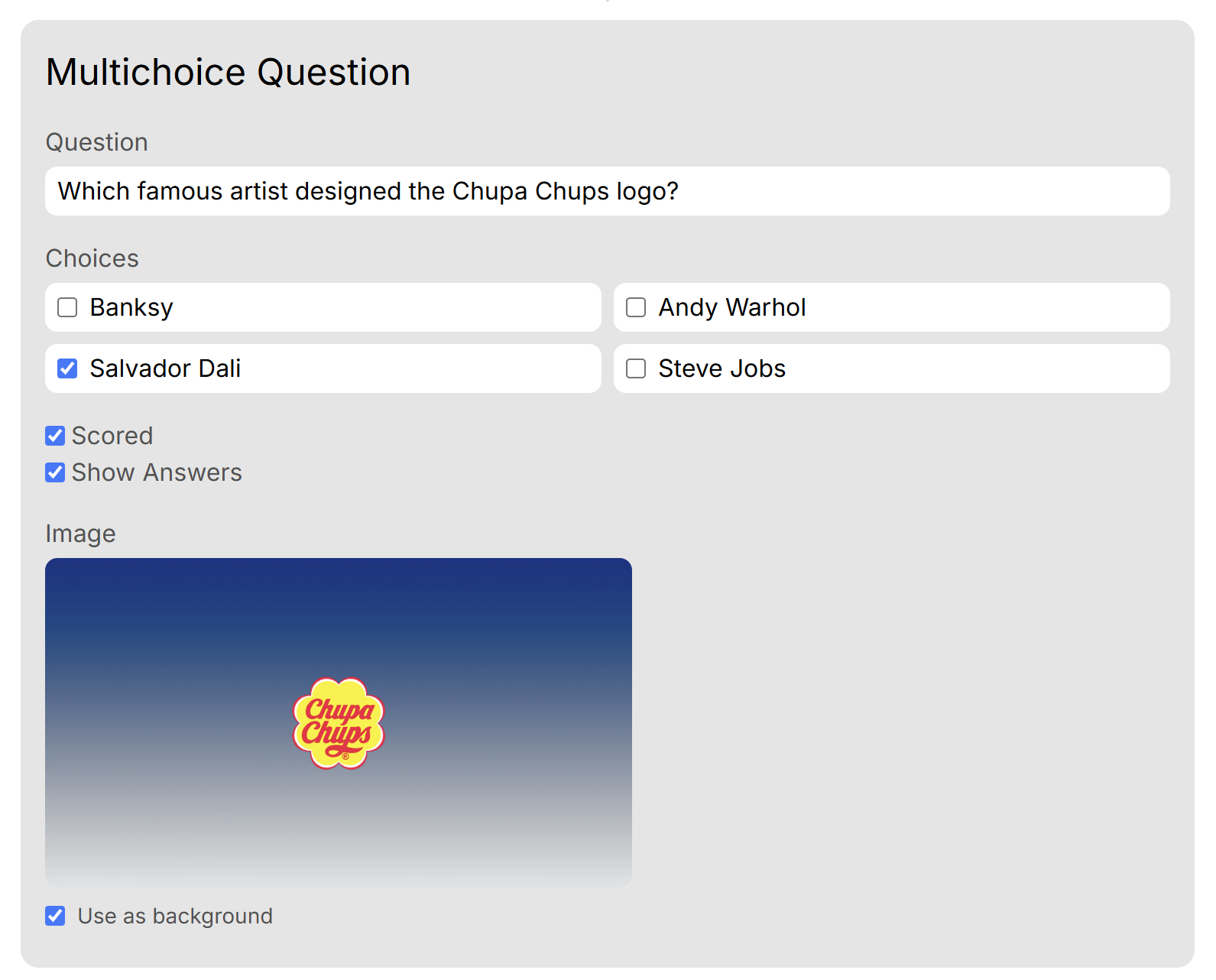
When creating or editing a Multiple Choice question, the following configurable options are available in the editor:
- Question Text
- Answer Options – Add multiple answer choices and mark the correct one(s).
- If no correct answer is defined, the host can select the correct answer during the session.
- Scored – Toggle whether the question contributes to the players' total score.
- Show Answers – Decide whether to reveal each team’s selected answer after submission.
- Image Settings – Upload an image and choose to display it either in the background or foreground.