
Appearance
Cameras
To use CubeQuiz, you need just one camera. This can be either:
- A webcam
- Or your phone, used as a webcam
Using a Webcam (Recommended)
The easiest and most reliable way to run CubeQuiz is with a webcam. You can test if your camera works in the CubeQuiz camera selector.
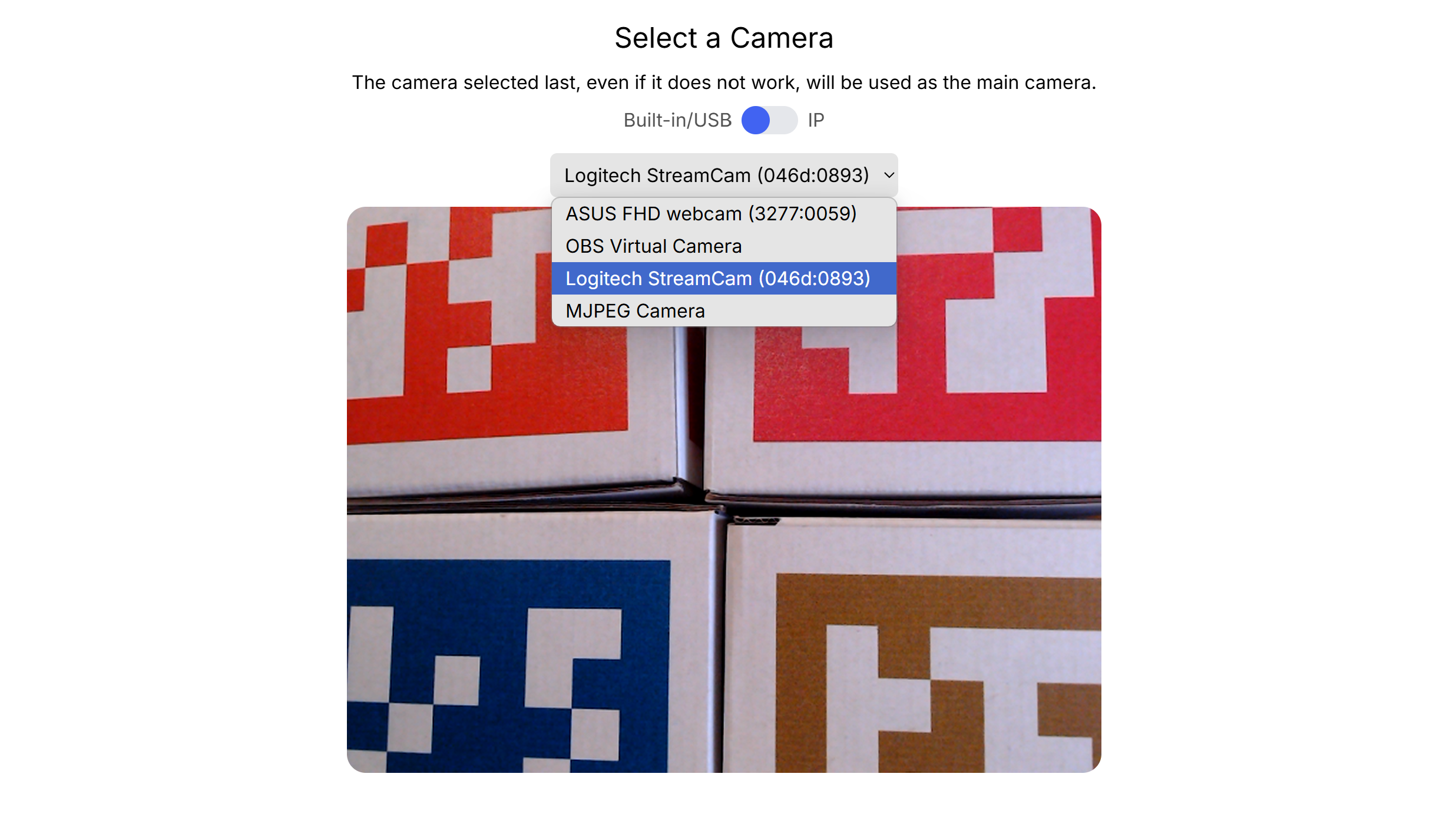
There are several types of webcams that work with CubeQuiz:
- Built-in webcams — These are integrated into many devices, like laptops or interactive whiteboards (e.g., Prowise boards, which often include a built-in camera).
- External webcams — These connect via USB. For example, the Logitech Streamcam is a great option, thanks to its wide viewing angle. That said, any webcam with decent resolution will do.
Some external monitors also have built-in webcams which can be used as well.
Using Your Phone
If you don’t have access to a suitable webcam—and don't want to purchase one (typically €50–€100)—you can use your phone instead. In terms of reliability, I would not recommend this if you are operating in a professional capacity.
For Android Devices
You can turn your Android phone into a webcam using the IP Webcam app. Here's how:
- Make sure your phone and the CubeQuiz device are connected to the same Wi-Fi network.
(Tech note: The app runs a local server your CubeQuiz session can connect to.) - Install and open the IP Webcam app on your phone.
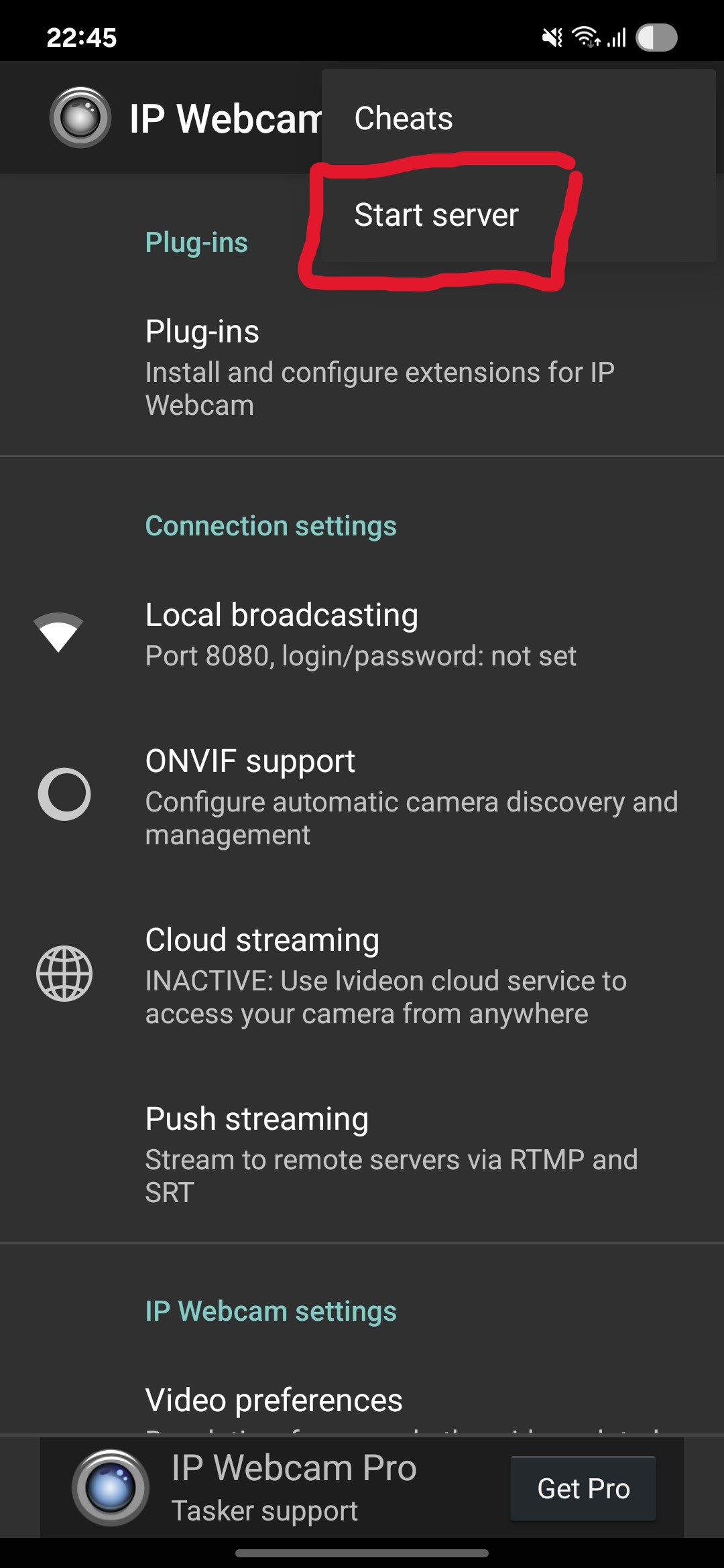
- Tap “Start server” in the top-right corner. This activates the camera feed.
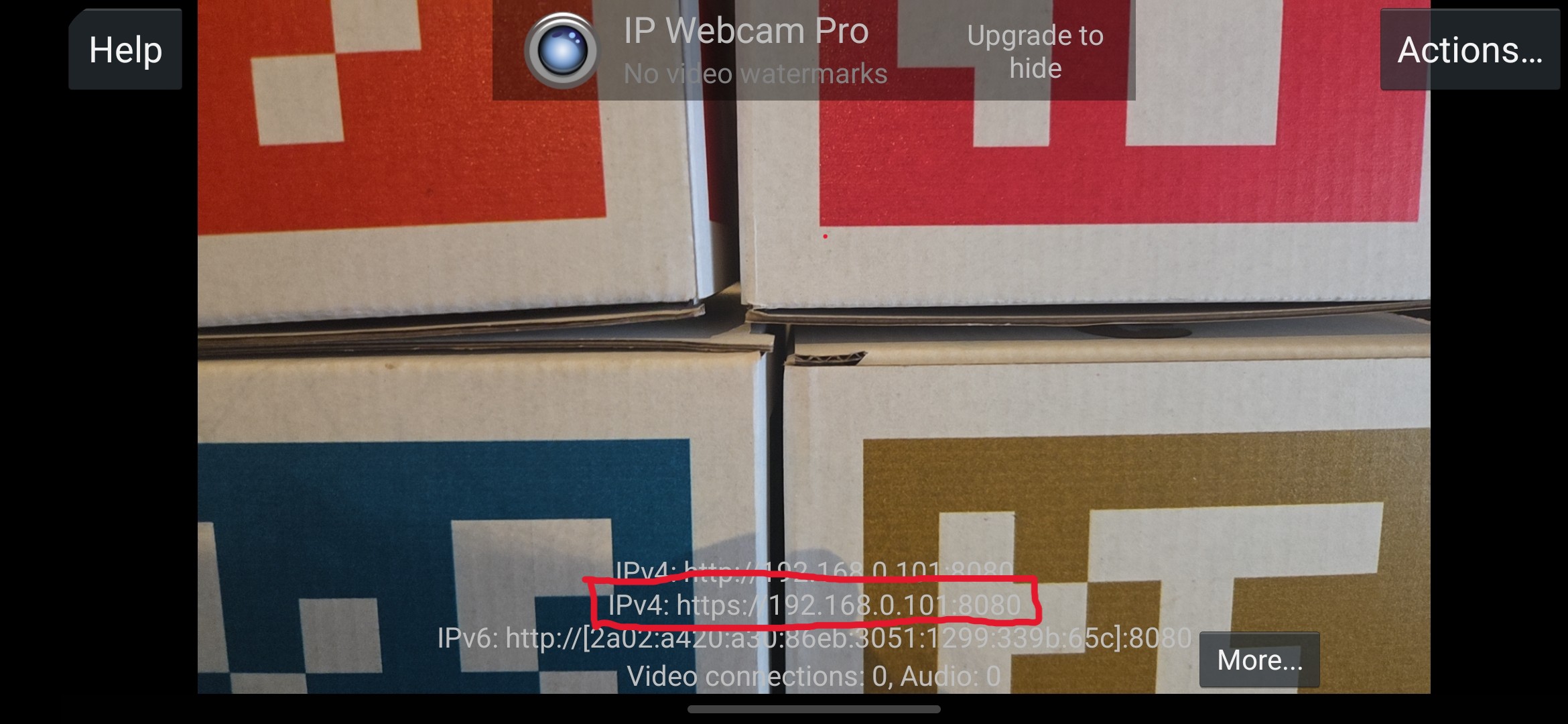
- At the bottom of the screen, you'll see several IP addresses.
- In CubeQuiz on your computer, open the camera settings and switch to the “IP” option.
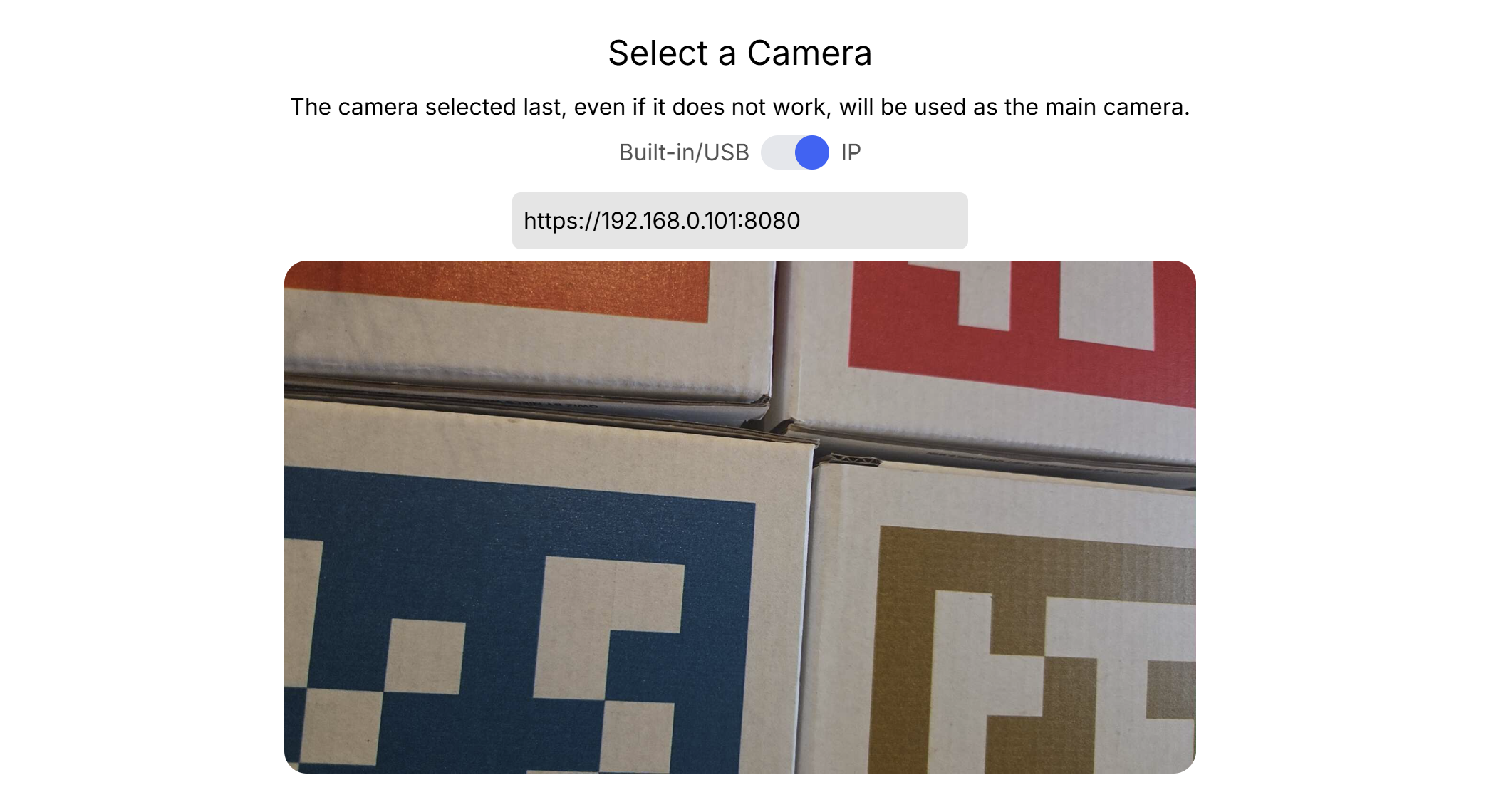
- Enter the IP address starting with
https, such as:https://192.168.12.34:8080 - If successful, the video feed will appear inside the CubeQuiz app—you're ready to play!
Optional:
Before starting the server, you can adjust the video settings to select a different camera on your phone (e.g., wide-angle). This may offer a better view depending on your setup.
For Apple Devices
Unfortunately, iOS devices can't run local servers, so the IP Webcam method won’t work. However, you can still use your iPhone (or Android) as a webcam via USB.
A great tool to achieve this is Camo:
Using Camo, your phone becomes a USB webcam with better quality than most built-in laptop cameras.